Quick Guide to Browser Notifications
The Basics
What are browser notifications?
Browser notifications are small alerts from websites for which you have given permission. They appear on your screen (even if the website is closed) to tell you about things like active weather and other alerts.
How do websites ask permission?
On theweathernetwork.com you sign into your account (it’s free!) and then you can opt in for notifications for any of your saved locations (you have to save locations in order to receive notifications about them). As part of this process, you will see a small box will open near the top of your screen asking if you want to "Allow" or "Block" them.
How to control them
How do I turn off browser notifications after I have said yes to them?
Go to the website, click the icon to the left of the URL in the address bar (lock or info icon), and change the notification setting from Allow to Block.
How do I allow browser notifications when I have previously said no?
You need to manually change your decision in the browser settings. Go to the website, click the icon to the left of the URL in the address bar (lock or info icon), and change the notification setting from Block to Allow.
How do I turn off all notifications for all websites?
Go into your browser's Settings (usually under Privacy & Security or Site Settings). Find the Notifications menu and turn off permission requests for all sites.
Technical Details and Security
How do browser notifications work?
They work using a special tool in your browser called a Service Worker. Once you click "Allow," this tiny program runs in the background. The website sends a message to your browser, which is then passed to the Service Worker, which finally creates the pop-up on your screen. This system allows the alerts to reach you even when the original website page is closed.
Are browser notifications dangerous?
Notifications themselves are not a security risk, but annoying or spammy websites can use them to send constant ads. Only say Allow to sites you trust.
Do browser notifications use up a lot of power?
Not usually. They are designed to be lightweight and don't require the whole website to be running.
iPhone and iPad
Why can’t I get notifications on my iPhone or iPad?
You can, but there are more steps involved due to Apple’s limits on web capabilities. Here are the steps for receiving web notifications from The Weather Network on your iPhone or iPad:
Update the iOS version to iOS 26 or above. (iOS devices only support browser notifications with very recent versions.)
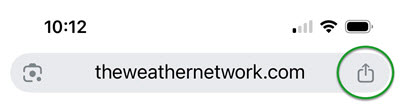
Open the theweathernetwork.com on your browser, and click the "share" icon in the URL field (examples showing Chrome and Safari share icons):
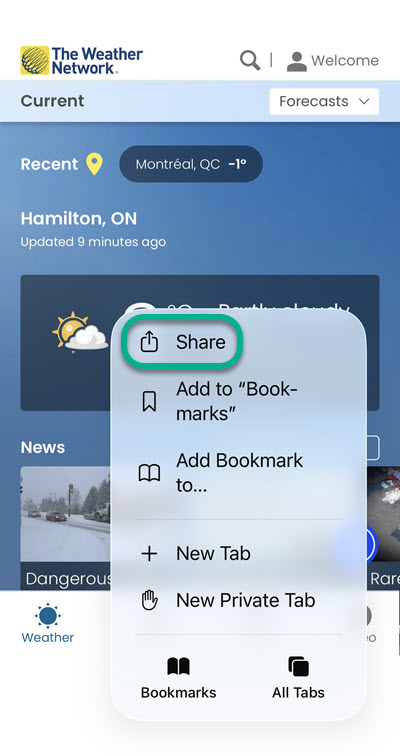
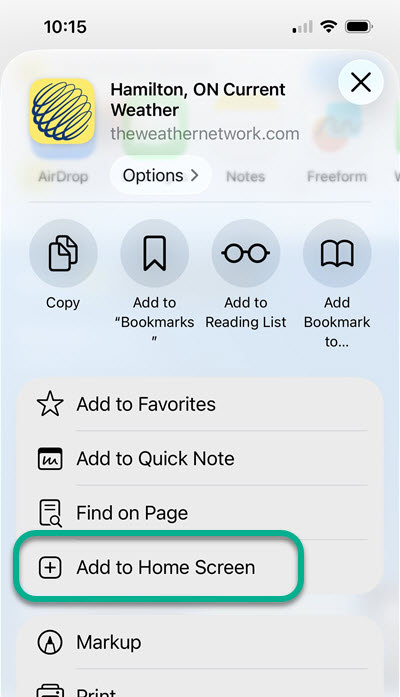
Click "Add to Home Screen":
Confirm "Add" on the next screen, making sure the "Open as Web App" option is enabled:


You can now sign in to your account and select the browser notifications you want for each of your saved locations! (Reminder: you need an account and saved locations on our website in order to receive notifications for your locations.)